 How-to
Integrating Technology Into Home Learning: A Daily Routine
Last Updated: November 14, 2026
Quick Summary
Build a home learning routine that uses technology on purpose by giving every session a named goal before the device comes out. Keep the same daily shape: a short warm-up, one focused block, then two minutes where your child explains what they figured out.
- A 2026 study found nearly 98% of technology-use instances observed were driven by explicit goals.
- A daily structure runs: same start time, warm-up, one focused block, talk it through, log it.
- Younger kids do best with 15-20 minute sessions; ages 9-14 can handle 25-35 minute blocks.
- Set boundaries before the session, not during it, and let your child control a visible timer.
- CodeAlgo Academy runs on web, iOS and Android with adaptive learning paths and is free for educators.
Table of Contents
- Why Technology Belongs in Your Home Learning Routine
- Technology Integration Examples You Can Copy This Week
- Building a Daily Homeschool Routine With Technology
- Screen Time for Learning at Home: Setting Boundaries That Stick
- Educational Technology Activities for Kids at Home
- How to Tell Whether the Screen Time Is Real Learning
- Your Child's First Week: Start With CodeAlgo Academy
- Frequently Asked Questions
Why Technology Belongs in Your Home Learning Routine
A home learning routine that uses technology on purpose looks very different from one that simply allows screens. When each session has a clear goal, daily planning tips can help keep technology purposeful while giving the rest of the learning routine room to unfold.
The research backs this up. A 2026 study in the Journal of Education for Teaching on technology use in early childhood classrooms found that nearly 98% of technology-use instances observed were driven by explicit goals.
So what does purposeful technology time give your child?
- A daily slot for active problem-solving, not passive watching
- Short lessons that fit around reading, chores and outdoor time
- A record of what your child actually practiced
The rest of this guide shows you how to build that routine, week by week.
Technology Integration Examples You Can Copy This Week
Start with one small change: give each screen session a named goal before the device comes out. That single habit is the core of technology integration examples that actually hold up at home.
Here are four you can try this week:
- Ten-minute coding warm-up. Your child solves two or three block-coding puzzles before breakfast.
- Math practice with a timer. Fifteen minutes of adaptive math games, then a two-minute talk about what felt hard.
- AI literacy chat. Once a week, ask your child how they think a chatbot picks its answers, then test it together.
- Screen-free planning. Your child writes the week's learning goals on paper first, then matches each goal to a tool.
The last example matters more than it looks. When kids set the goal themselves, the screen time stops being a reward and starts being a work session.
Building a Daily Homeschool Routine With Technology
A daily homeschool routine with technology works when it follows the same shape every day.
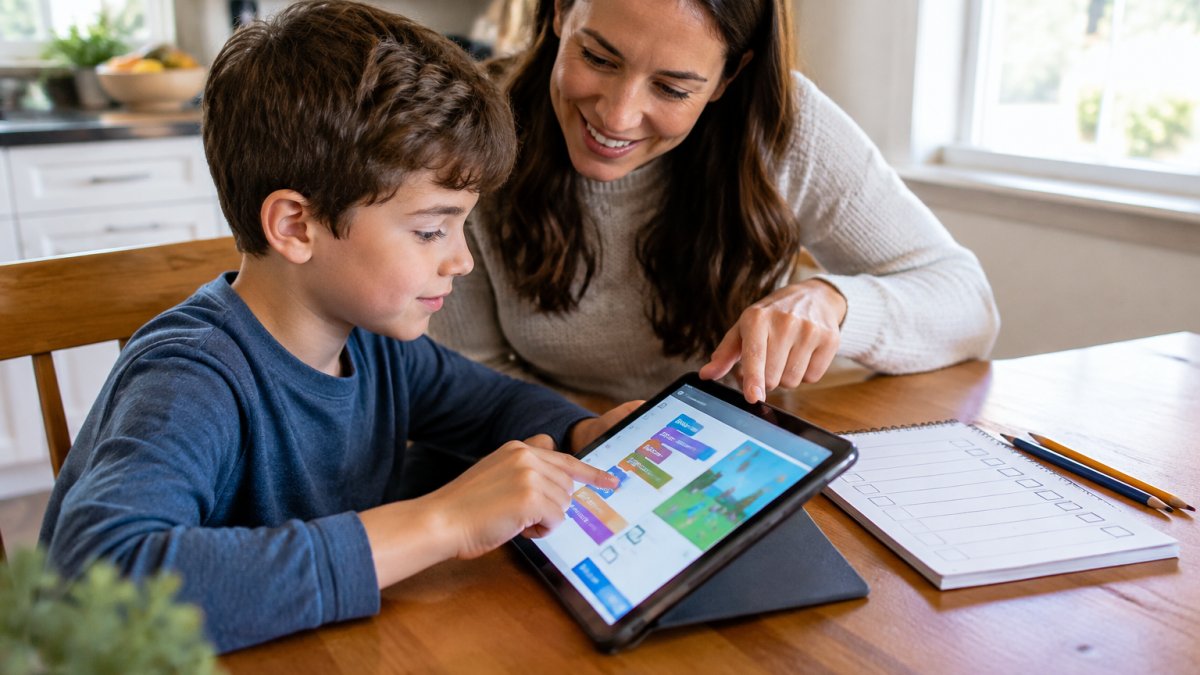
Here is a simple structure to copy:
- Same start time. Learning time begins at the same hour each day.
- Warm-up first. Five to ten minutes of something easy and fun.
- One focused block. Fifteen to twenty minutes on the day's main skill.
- Talk it through. Two minutes where your child explains one thing they figured out.
- Log it. A quick note or checkmark on a paper chart.
That fourth step is where the real learning gets locked in. A child who can explain a solution has thought about it.
If you are choosing a coding curriculum to slot into this routine, our guide to a good homeschool coding curriculum compares game-based, self-paced and live options for K-8 students.
A Sample Week, Ages 5-8 and 9-14
Younger kids do best with short, repeated sessions. Older kids can handle longer blocks and more open problems.
| Day | Ages 5-8 (15-20 min) | Ages 9-14 (25-35 min) |
|---|---|---|
| Monday | Block-coding puzzle | Block coding, then Python intro |
| Tuesday | Counting and pattern game | Math practice with adaptive levels |
| Wednesday | Story-based logic game | AI literacy question of the week |
| Thursday | Block-coding puzzle | Python project work |
| Friday | Show-and-tell of a favorite level | Explain one solution out loud |
Notice that Friday is not a test. It is a chance for your child to talk about what they made, which builds confidence and shows you what stuck.
Screen Time for Learning at Home: Setting Boundaries That Stick
Screen time for learning at home works best when the boundaries are set before the session, not negotiated during it. Rules made in the moment turn into arguments; rules made in advance turn into habits.
Start with a simple frame. It can help to think in three buckets rather than one total: learning time (a lesson, a puzzle, a project), creating time (making a game, recording an explainer, drawing a design), and passive time (videos, scrolling, autoplay).
Boundaries that hold up in a real week
- One device, one purpose. During learning time, only the learning app is open. Close tabs, silence notifications, and put the device in a shared room.
- A visible timer your child controls. Kids accept a timer more easily than a parent's voice. Let your child start it and stop it, ownership lowers resistance.
- Screens off at meals and bedtime. Zero to Three's guidance on using technology in early education settings advises families to keep screens away from routines like meals and sleep.
Adapt the limits to your child's age
Younger kids (roughly 5-8) do best with short, repeated sessions and a caregiver nearby. Older kids (roughly 9-14) can handle longer blocks and more open problems, but they also need more say in choosing the goal, that ownership is what keeps them from treating the screen as a reward. If your child melts down at the end of a session, the limit is probably too long or the transition is too abrupt; shorten the block and add a two-minute warning.
Privacy, safety, and the practical stuff
Before you add any tool to the routine, check three things: whether the app collects personal data from children, whether it has ads or in-app purchases, and whether it lets your child interact with strangers. Prefer tools with a parent dashboard and a clear privacy policy written for families. For shared devices, create a separate child profile so settings and history stay separate from yours. If your home has limited connectivity or one shared tablet, download lessons for offline use where the app allows it, and schedule sessions in turns rather than side by side.
If you want help enforcing limits, our comparison of screen time tools for parents covers free built-in controls and paid apps. For a wider framework, see this guide to productive screen time for kids.
Watch out: a boundary that only exists in your head will not survive a tired Tuesday. Write the rules down with your child, post them where the device lives, and revisit them at the start of each month.
Educational Technology Activities for Kids at Home
The best educational technology activities for kids at home share one trait: your child has to make a decision. Tapping through a video does not count.
Here are activities you can run this week, grouped by what they build and mapped roughly to age. You do not need to know how to code to run any of them; each one is a prompt, not a lesson you have to teach.
Problem-solving and logic (ages 5-8)
- Build a simple game. Your child designs three levels of a block-coding game, one easy, one with a trap, one with a goal. Ask them to explain why level two is harder.
- Debug a broken sequence. You change one step in a puzzle and your child finds the error. Start with one wrong step; add a second only when the first is easy.
- Chart a math pattern. Your child predicts the next number in a pattern, then tests the guess with an adaptive math game.
Building and explaining (ages 9-14)
- Teach a chatbot. Your child writes instructions for a chatbot and checks whether the answer matches. Then they rewrite the instructions to fix what went wrong, that rewrite is the learning.
- Record a two-minute explainer. Your child walks through a solution on camera. Watching it back is often the moment they spot their own mistake.
- Plan a mini-project. Your child picks one skill (loops, variables, a math concept), builds something small that uses it, and shows it on Friday.
The caregiver's role: participate, don't take over
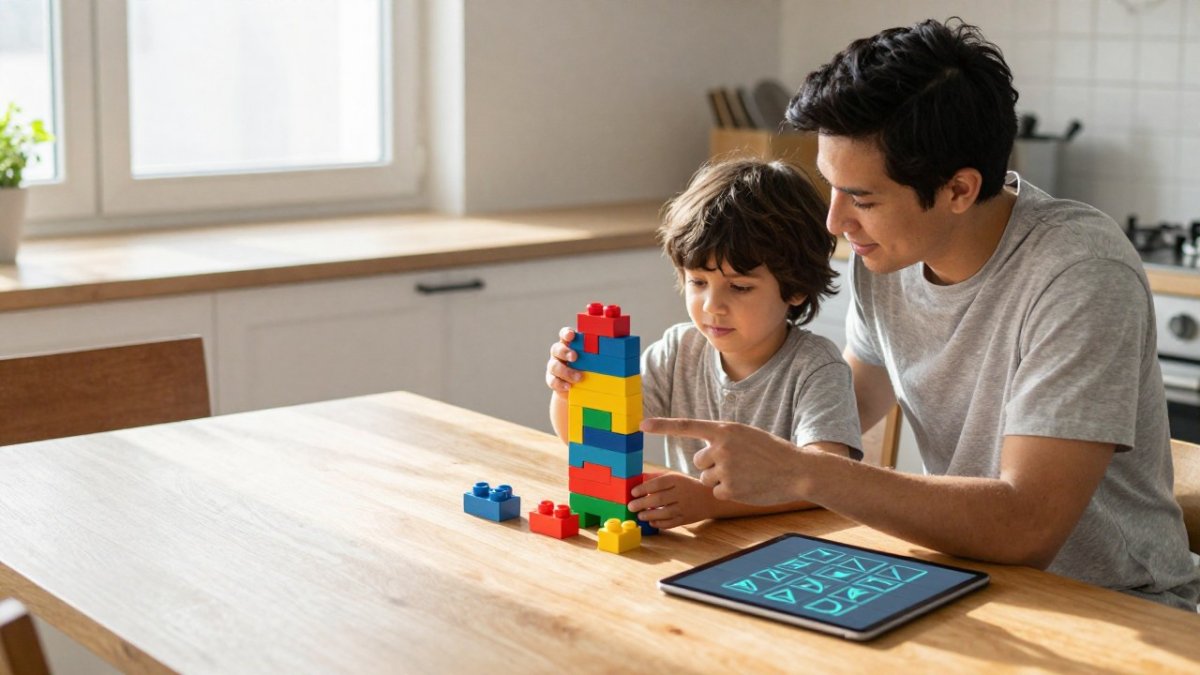
The most common pattern that derails home technology time is a parent solving the problem for the child. Resist it. Sit nearby, ask questions instead of giving answers (“What did you try first?”, “What would happen if you changed this step?”), and let your child sit in the struggle for a minute before you step in. If your child gets stuck, the move is to shrink the problem, cover half the screen, ask them to say the goal out loud, or drop back one level, not to take the mouse.
When the setup is not ideal
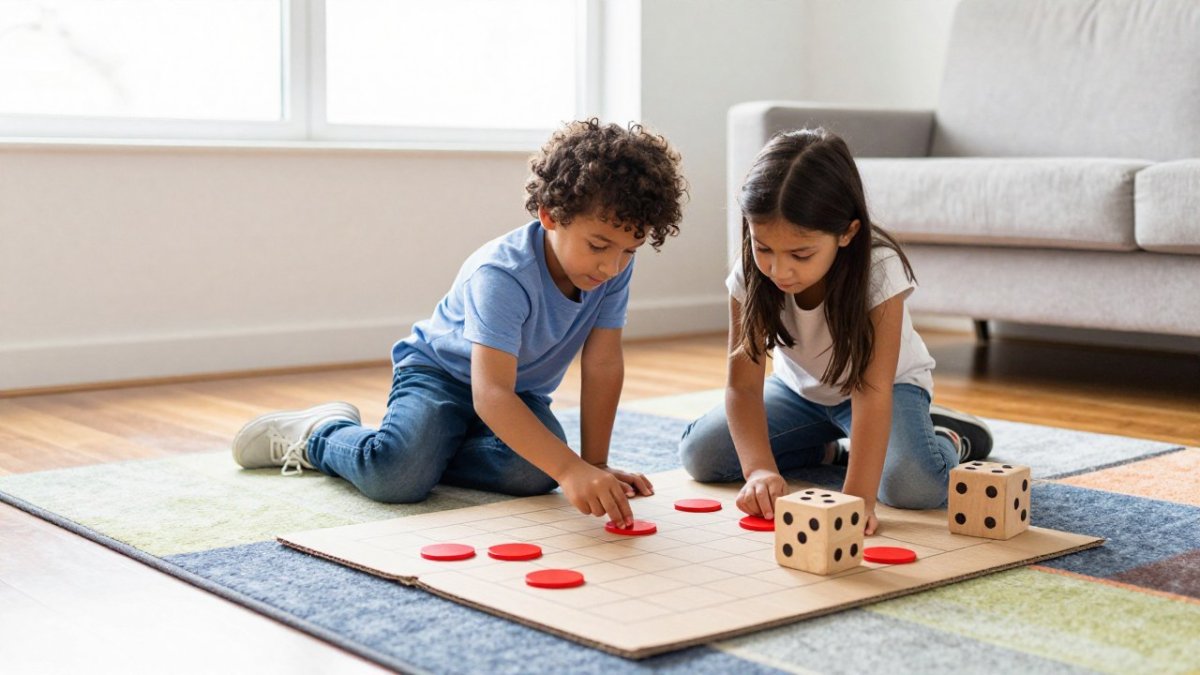
Not every home has a fast connection or a device per child. If you are sharing one tablet, run sessions in turns and use the waiting turn for the paper version of the same activity (sketch the level, write the steps, predict the answer).
Each activity above asks your child to think, decide and check. That is the pattern to look for in any app you add to your home learning routine, and it is the same pattern you can use to judge a new tool before you commit to it.
How to Tell Whether the Screen Time Is Real Learning
Real learning shows up in what your child can do without the screen. If your child can explain a solution, spot a mistake and try a second approach, the learning is real.
Use this quick check after a session:
| Question | Real learning | Just a game |
|---|---|---|
| Can my child explain a step? | Yes, in their own words | "I don't know, I just clicked" |
| Does my child slow down on hard levels? | Yes, they pause and plan | They skip or guess |
| Can my child retry after a mistake? | Yes, without a meltdown | They quit or ask for help fast |
| Is there visible progress? | Levels and skills build | Same levels, no growth |
One honest caveat: fun alone does not prove learning. If you want a deeper look at what makes educational screen time healthy, read is educational screen time considered healthy for kids.
Your Child's First Week: Start With CodeAlgo Academy
You do not need to know how to code to start. That is the first thing we tell parents at CodeAlgo Academy, because it is the worry we hear most.
Here is what a first week can look like:
- Day 1: Set up an account and let your child try one lesson.
- Day 2: Try a second lesson and watch for the pause-and-plan moment.
- Day 3: Ask your child to explain one solution out loud.
- Day 4: Add a short math session alongside coding.
- Day 5: Review the week and pick one goal for next week.
CodeAlgo Academy runs on web, iOS and Android, uses adaptive learning paths that meet each child where they are, and is aligned to standards such as CCSS and CSTA. If you teach in a classroom too, you can sign up free as a teacher and bring the same lessons into your school day.
For getting-started guides, online safety tips and family coding activities, see our guide to supporting your child's coding journey.
The hardest part of a home learning routine is not the technology. It is keeping the sessions purposeful once the novelty wears off.
Frequently Asked Questions
How do you integrate technology into a daily home learning routine?
Pick one or two fixed slots in the day, such as a 20-minute coding block after breakfast and a short math session before lunch, and keep them the same each day. Choose one tool per slot so your child is not switching apps constantly. Research on classroom technology use suggests that goal-driven use is what makes screen time valuable, so name the goal out loud before the screen comes on. Then close the session with a two-minute talk about what your child figured out.
How much screen time should children have for learning?
There is no single number that fits every family, so treat screen time for learning at home as something you shape rather than a limit you hit. Out-of-school digital learning is now common for many children. Keeping screens away from routines like meals and sleep is a widely recommended habit. A practical approach is to protect those routines, then give learning sessions a clear start and end.
Do parents need coding experience to help children learn with technology?
No. Your job is to set up the routine, ask questions, and notice when your child is thinking rather than clicking. At CodeAlgo Academy, parents do not need a coding background to get their child started, because lessons run on adaptive learning paths that meet each child where they are. If your child gets stuck, ask them to explain the problem in their own words before you offer help. That single habit keeps the thinking with your child and works whether or not you have ever written a line of code.
How can I tell whether an educational game is helping my child learn?
Fun alone does not prove learning. Useful lessons slow kids down to break a problem apart, so watch for that pause: does your child stop, read, try, and adjust? Ask them to walk you through one level afterward. Look for measurable results, such as progress reports, rather than stars and badges. If your child can explain a decision they made, the screen time is doing its job.